
AcoustID
AcoustID is an acoustic fingerprint system built entirely on open-source technology.
In MusicBrainz
Each recording page in the MusicBrainz web interface has a Fingerprint tab that lists the AcoustIDs associated with the recording. Each one has a Link or Unlink action associated with it. If you are certain that an AcoustID does not belong to a recording, you can use the Unlink action to disable the association between the MusicBrainz recording and the AcoustID. This will prevent MusicBrainz Picard from suggesting that recording when it scans an audio file and finds that AcoustID. If you find that someone else has disabled the AcoustID incorrectly, the Link action will reactivate this association.
To see more information about the AcoustID, including durations of submitted fingerprints, visualizations of the fingerprint, and a list of associated MusicBrainz recordings, click on the AcoustID.
Note that using the Link/Unlink actions requires you to enter your MusicBrainz credentials into a different website. If you are not comfortable doing this, please do not use these actions.
In Picard
Relevant video:
If your files do not have MBIDs in their tags, you can use Picard to submit AcoustID fingerprints while you tag them.
Configuration
- Go to Options → Fingerprinting, select Audio Fingerprinting and Use AcoustID.
- If you want to be able to submit fingerprints, enter your API key. If you don’t already have one, click Get API key… on acoustid.org.
Usage
Scanning and submitting AcoustIDs
Select an unmatched file (or cluster) and press the Scan button. Picard will calculate the fingerprint of the file and look it up on the AcoustID server, trying to find an ID corresponding to the file's fingerprint. If the fingerprint yields a match, and it is already linked to a MusicBrainz ID, the track will be matched. You don't need to submit it! If it does not get a MB or AcoustID match, the fingerprint stays associated with the file in memory, but the file stays in the left-hand pane. Now you must manually match the track using another mechanism (e.g. Cluster/Lookup or manual search on the website).
Once the file is matched to MusicBrainz, you can press the 'Submit' button to send the information to AcoustID, thus helping future users. 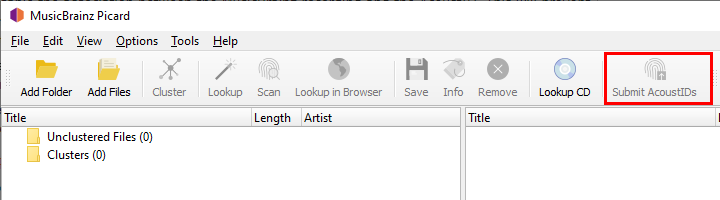
Creating fingerprints
If your files already have MBIDs stored in their ID3 tags, just use the AcoustID Fingerprinter available at the AcoustID website.
Open the Fingerprinter and input your API key in the key field (if you don't have one, press Get API key… to do that!). Select the folders that contain the files you want to fingerprint and press "Fingerprint": your files will be fingerprinted and the info submitted to AcoustID. You're done!